
“The widget’s been on since last spring, so we should be covered.”
That gets said with real relief, and I understand why. Somebody signs a purchase order, a developer pastes one line of JavaScript into the theme, an icon appears on every course page, and a problem the institution has avoided for years looks closed in an afternoon. Then a student who uses a screen reader complains about the gradebook, or a letter arrives from a firm that files a lot of these.
Buying an overlay is a reasonable mistake made by people acting in good faith. The marketing is confident, the price is low against a real audit, and nobody on the purchasing side has a way to test the claim. Accessibility is a precondition rather than a phase, which is why the shortcut tempts: the real work has no end date and the widget has a checkout button.
The real work has no end date and the widget has a checkout button.
In short: No. Accessibility overlay widgets edit the page in the browser instead of fixing the code underneath, and they can conflict with the screen reader a student has already tuned to their own needs. What gets you to WCAG 2.2 AA is the markup and the uploaded documents.
How an overlay widget works
The category includes accessiBe, UserWay and EqualWeb, plus smaller entrants, all named on the Overlay Fact Sheet. AudioEye sells into the same market with a meaningfully different model, and I’ll come back to it.
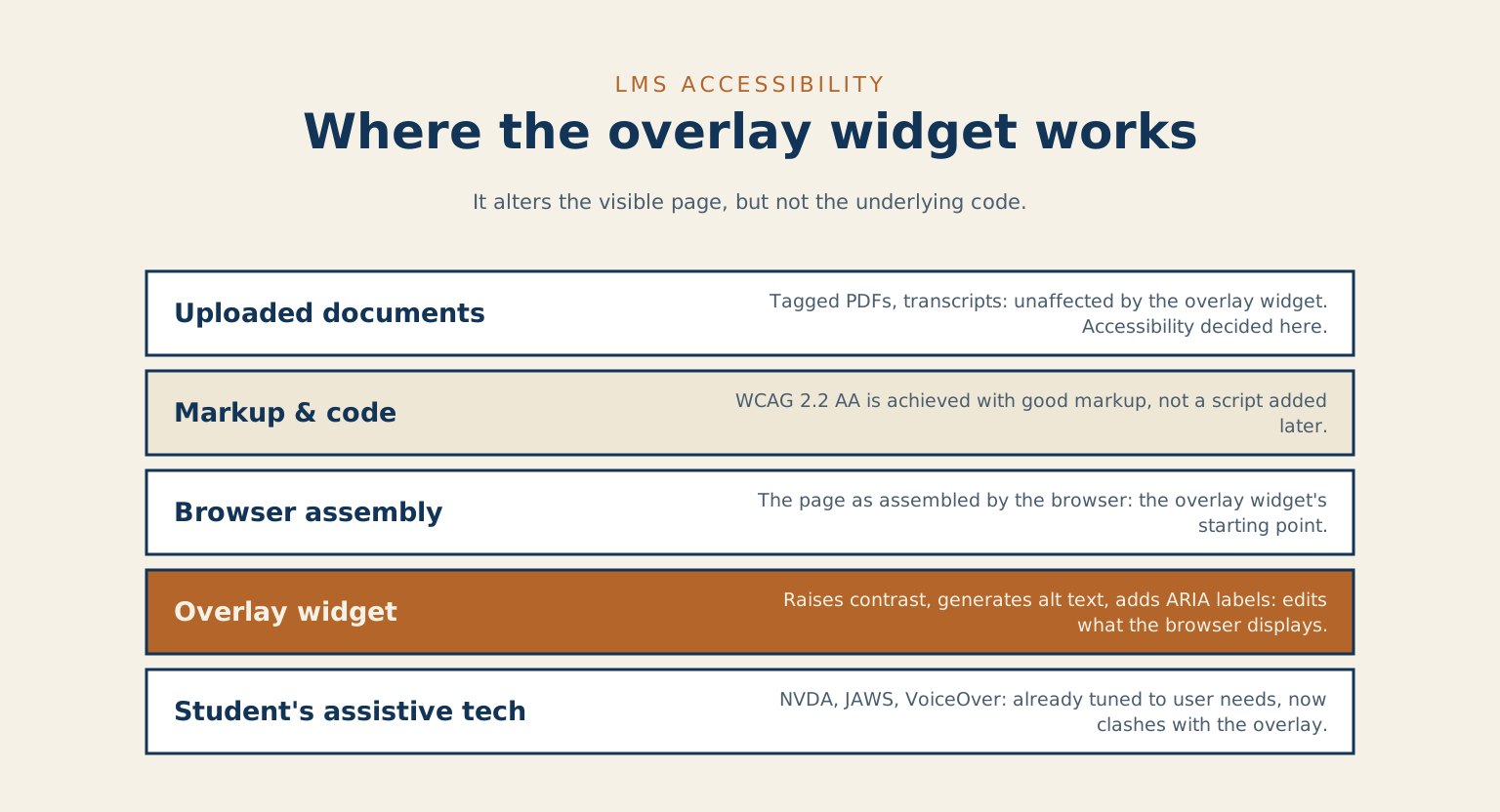
The mechanism is the same across the category. You add one script tag site-wide, and on page load it reads the page as the browser assembled it and changes what it finds: raising contrast, generating alt text, adding ARIA labels to controls that lack them, binding a few keyboard shortcuts.
Among the claims the Overlay Fact Sheet lists from overlay vendors is that the product will bring a site into compliance with WCAG, and with the laws that mandate it. Compliance isn’t a property a third-party script can assert on your behalf. Same shape as the FERPA question in the first piece in this series: a vendor sells you something supporting a defensible posture, and your institution still reaches the conclusion in writing.
Why an overlay cannot fix an LMS
Think about paint. A coat of paint changes what a room looks like, and there is nothing wrong with paint. It will not widen a doorway, and it will not put a stud behind drywall that never had one. The overlay works on the finished surface of the page. Accessibility is decided in the framing.
The trouble isn’t that the widget does nothing. It’s that it works on the layer above the one that failed. A div styled to look like a button is still not a button when a script paints a label onto it. A heading structure that jumps from level two to level five stays broken after ARIA goes over the top, and heading navigation is how screen-reader users move through a long page: 71.6% of respondents to WebAIM’s 2024 screen reader survey said they navigate the headings first when looking for information on a lengthy page.
Injected ARIA also produces double announcements, contradictory roles, and accessible names that disagree with the visible text, and a screen reader believes the ARIA over the page. The W3C’s own guidance says it plainly: no ARIA is better than bad ARIA, because incorrect ARIA misrepresents the visual experience to the people who depend on it.
What it does to the student’s own setup
Then there is a complaint that runs through disabled users’ testimony and stays out of the procurement conversation. A blind student arrives already carrying assistive technology, such as NVDA, JAWS or VoiceOver, tuned over years to their own speech rate and verbosity. The overlay assumes that student has nothing and starts reformatting the page live to help. Picture wearing hearing aids fitted to your own audiogram at a restaurant, and the room responds by turning every ceiling speaker up. The intent is kind. The equipment you brought is now fighting the room.
Some failures are out of reach for any script running in the page. Auto-generated alt text comes from a model with no idea why the image was put in the lesson, so a diagram carrying the point of a module gets described as “chart,” which looks like the box was ticked. Captions need transcript data that exists nowhere on the page, tagged PDFs are a separate format the script never touches, and a keyboard trap is a focus bug that no page rewriting frees a student from.
What the profession has said about overlays
None of this is a fringe position. The Overlay Fact Sheet is a public statement signed by accessibility professionals, contributors to the WCAG, ARIA and HTML specifications, and end users with disabilities. It says that full compliance cannot be achieved with an overlay. It also reports WebAIM’s practitioner survey, in which 67% of respondents rated these tools as not at all or not very effective, and 72% of respondents with disabilities did.
Before a renewal, ask your vendor for a specific case where their widget held up as a defence in an actual complaint. A marketing claim of compliance doesn’t count, and if they can’t name one, that’s the answer.
Where automated accessibility tooling earns its budget
There is a category next door to this one, and conflating the two is how good tools get dismissed with the bad ones.
Automated scanners find problems and hand them to a human. A monitoring service built on axe-core, or your own build pipeline running the same engine on every deploy, flags a missing label, a contrast failure, an empty link. It fixes nothing by itself, and that is the feature: the output is a work queue for whoever owns the theme, and the change lands in source control where it stays fixed.
Scanners cover only part of the problem. When the UK Government Digital Service tested 13 tools against a page with 142 deliberately introduced barriers, the tools found between 13% and 40% of them. That audit was last updated in April 2018, so read the figures as what tools could do then. A scan is the floor of a program rather than the program.
AudioEye sits in between, pairing automated detection with human remediation and ongoing monitoring, a different offer from a script claiming to be the fix. Its client-side injection layer still deserves hard questions at purchase, since fixes applied in the browser rather than in source carry the same conflict risk as anything else rewriting the page under a student’s assistive technology. Ask which fixes land in your code and which land at runtime, in the contract.
What actually gets an LMS to WCAG 2.2 AA
The unglamorous version, ordered by what breaks in course interfaces rather than by criterion number.
Semantic structure, before anything else. Course pages, gradebooks and quiz builders are assembled from generic containers, with CSS doing the work headings used to do. Visually it reads as a hierarchy. To a screen reader it is one undifferentiated block. That fix is a theme job, and it moves more students than anything else here.
What the 2.2 additions change
Keyboard operation and focus. WCAG 2.2 added 2.5.7 Dragging Movements at Level AA: anything requiring a dragging motion needs an equivalent that works with a single pointer action. LMS platforms are full of drag interactions, reordering modules or dropping a file onto an assignment, many with no keyboard path. The same release added 2.4.11 Focus Not Obscured, reproducible in five minutes: tab down a long assignment-settings form on a page with a sticky header and watch the focused field slide underneath it.
Time limits and colour
Two small new criteria that are easy to miss. 2.5.8 Target Size asks for 24 by 24 CSS pixels on interactive controls, which gradebook widgets and mobile icon rows can miss. 3.2.6 Consistent Help asks that support mechanisms appear in a consistent relative order across pages, and an LMS can place the help control differently for students than for instructors. Neither is expensive. Both need someone looking.
Quiz timers, a compliance issue and an accommodation issue at once. Criterion 2.2.1 Timing Adjustable predates 2.2, and it is one an LMS can fail structurally: if a timed assessment can’t be turned off, adjusted or extended within documented exceptions, the platform has locked out students with cognitive and motor disabilities. Your disability services office is probably granting extended time on paper already; whether the platform delivers it per quiz without an administrator improvising is worth asking this week.
Colour and forms, the classics. Gradebook indicators carrying meaning in red, amber and green alone fail 1.4.1 Use of Colour, fixed with a word or shape alongside the hue. Form fields need labels programmatically tied to their inputs rather than placeholder text, errors announced rather than only shown in red, and required fields marked in more than one channel. The W3C’s WCAG 2.2 recommendation is more readable than its reputation suggests.
Are uploaded PDFs covered by LMS accessibility?
Check this gap first. An LMS is a document delivery system wearing a web interface. Syllabi, readings, handouts and lecture slides arrive as uploaded PDFs and Word files, and the accessibility of the shell has no bearing on their contents. A perfectly conformant Canvas instance will serve four hundred untagged PDFs without complaint. Untagged means no heading structure, no defined reading order, no alt text on the figures, and no way for a screen reader to tell a data table from a paragraph. For a blind student the file opens and says almost nothing.
That isn’t a technology gap, it’s a training and procurement gap. The fix is faculty workflow: heading styles applied in Word and a tagged PDF on export, alt text written while the author still knows what the figure was for, and accessible HTML wherever the content never needed to be a document, plus a policy for legacy files, remediate on request within a stated turnaround and high-enrolment courses ahead of it.
Two checkers make this measurable. PAC (the PDF Accessibility Checker) is a free Windows tool for PDF/UA tagging, the closest thing the field has to a standard. Adobe Acrobat Pro’s built-in checker is less strict but already sits on faculty desktops, which counts for more. For a number to take to a dean, run either across thirty files from one department and report the pass rate, the kind of finding a site and content audit exists to produce before a complaint does.
What your own LMS already gives you
Moodle ships an accessibility toolkit in recent core covering font size, contrast and a dyslexia-friendly font, and core keyboard navigation holds up reasonably well. The exposure is everything around core: plugins and custom themes vary enormously, nothing enforces a standard across them, and a site gets assembled from decent parts into something that fails.
Of the three, Canvas is the one I’d point to first. Instructure publishes VPATs (Voluntary Product Accessibility Templates, the standard vendor disclosure format), and Canvas integrates with Ally by Anthology, worth naming as the shape real remediation tooling takes. Ally scores instructor-uploaded content, shows the instructor what’s wrong with their own file, and walks them through fixing it, the inverse of the overlay pattern in every respect that matters.
Brightspace publishes a VPAT too, but leans on its own native tooling rather than Ally, D2L Lumi and an in-platform accessibility checker among them. Different approach, not automatically a worse one, but it means the Ally-versus-overlay contrast above doesn’t transfer directly. Conformance claims and publication dates move, so pull the current VPAT from the vendor rather than citing a level you read in a slide deck, including this one.
What stays with the institution
- Moodle: plugin and theme choices, since nothing enforces a standard across them.
- Canvas: the LTI-integrated third-party tools, such as courseware and proctoring, which sit outside Instructure’s control.
- Brightspace: the same LTI gap as Canvas, plus checking that its native tooling covers what Ally would have caught.
As of 2026-10-11. Conformance levels and product names change; confirm each vendor’s current VPAT before citing a specific claim.
All three share the same gap. Native accessibility covers the shell and core authoring tools, not instructor-uploaded content, and not the third-party tools bolted on through LTI (the standard that plugs external publisher courseware and proctoring software into an LMS), where a compliant Canvas instance still hands a student an inaccessible experience. Lockdown browsers used for timed testing have documented conflicts with screen readers, hard to discover at exam time.
Ally reports; enforcement stays yours. Buying it without a remediation workflow, named owners and a deadline buys a dashboard measuring a problem nobody is assigned to solve.
Does a CDN or edge layer help with accessibility? Mostly no
This is the piece in the series where the network layer has little to offer, and I’d rather say so than manufacture a use case. Cloudflare Workers can serve pre-tagged assets quickly, and that’s the end of the list: edge compute doesn’t fix semantic markup or focus order, because those live in the application.
Page speed does matter to disabled users, worth being precise about why. Slow loads and layout shift fall heaviest on people with cognitive and attention-related disabilities, and on switch-control users who queue input and wait through a page moving under them. That’s a usability argument supported by accessibility research; 2.2.1 Timing Adjustable, by contrast, governs session and quiz timers, and has nothing to do with page-load time.
What the law actually asks for
Ontario, under AODA. The Integrated Accessibility Standards Regulation requires WCAG 2.0 Level AA, excluding success criteria 1.2.4 and 1.2.5. Designated public-sector organizations, school boards and public colleges among them, are obligated regardless of size. Private and non-profit organizations with 50 or more employees hit the same bar on a deadline that passed 1 January 2021. Ontario’s legal floor is two versions behind current practice, so a board can be compliant today and still fail criteria a student meets on a phone. I keep a Canadian accessibility deadline lookup for sorting out which dates apply.
United States, under ADA Title II. The DOJ rule requires WCAG 2.1 Level AA for state and local government web and mobile content, covering public districts, colleges and universities, with compliance dates tiered by population size. A Department of Justice interim final rule published April 20, 2026 moved those dates to April 26, 2027 for entities serving 50,000 people or more and April 26, 2028 for smaller ones. Those dates have moved since the rule first published, so pull them from ada.gov directly rather than from this paragraph or any planning memo written earlier, the deadline that matters is whichever one is current the day you check.
Beyond public bodies
Section 504, where federal money is involved. Section 504 of the Rehabilitation Act, not Section 508, which governs federal agencies’ own technology and their direct contractors, is the one that reaches institutions receiving federal financial assistance. For recipients of HHS funding, the 2024 rule adopted WCAG 2.1 Level AA, and an HHS interim final rule effective May 7, 2026 moved the dates to May 11, 2027 for recipients with 15 or more employees and May 10, 2028 for fewer than 15. Section 508 itself harmonized with WCAG 2.0 in its 2018 refresh. Check which agency’s regulation reaches the money you receive.
Common questions
We already paid for a year of the widget. Should we rip it out today?
Let the contract run out if you must, but stop counting it as a control. Read the contract for what it claims on your behalf, since some agreements assert compliance in your name, then test the site with a real screen reader, widget on and widget off. If pages get worse, that settles the renewal.
Does the widget at least help with a lawsuit?
A vendor’s statement that the widget makes you compliant is only the vendor’s statement. What helps is a dated remediation plan with named owners and evidence of progress, because that is what demonstrates good faith when somebody asks.
Who should own this in a district?
Somebody with a budget line. In practice it lands with IT, the teaching and learning centre, or disability services, and fails when split across all three with no owner. The arrangement that works gives each group one clear piece: IT the platform and theme, the teaching centre faculty training, disability services the escalation path when a student reports a barrier.
Where to start on Monday
Open your own LMS, turn on the screen reader already built into your operating system, and try to reach the gradebook from the course home page using only the keyboard. Then open the three most recently uploaded PDFs in an active course and check whether they are tagged. Neither needs a consultant and both take an afternoon.
I keep an accessibility statement on my own site, mostly because publishing one means having to keep it true. Anyone can check it, including the student who was going to email you anyway.
If you have run the keyboard test on your own LMS, where did it break first?
If you want those checks run and written up for a dean, that’s what my accessibility work produces.
Checked against the Overlay Fact Sheet, WebAIM’s survey, the W3C’s WCAG 2.2 summary, Instructure’s trust centre, Ontario’s page, ADA.gov’s rule page Section508.gov and the DOJ and HHS interim final rules, on 2026-10-11.
References
- Overlay Fact Sheet, signed by accessibility professionals, specification contributors and disabled end users.
- WebAIM, Survey of Web Accessibility Practitioners #3, 2021.
- WebAIM, Survey of Users of Assistive Technology: Screen Reader User Survey #10, 2024.
- W3C, ARIA Authoring Practices Guide: Read Me First.
- UK Government Digital Service, Accessibility tool audit, last updated 13 April 2018.
- W3C, What’s new in WCAG 2.2.
- W3C, Understanding SC 2.2.1 Timing Adjustable.
- W3C, Web Content Accessibility Guidelines (WCAG) 2.2.
- Instructure, Trust Centre.
- Government of Ontario, How to make websites accessible.
- U.S. Department of Justice, Fact sheet: new rule on the accessibility of web content and mobile apps provided by state and local governments.
- U.S. Department of Justice, Extension of compliance dates for web accessibility, interim final rule, April 20, 2026.
- U.S. Department of Health and Human Services, Extension of compliance dates, interim final rule, effective May 7, 2026.
- Section508.gov, Laws and policies.
Leave a reply