WordPress 7 is here. Here's what's new and what to do.
WordPress 7 shipped in May 2026. If you run a WordPress site, here is what changed, what matters, what to actually do about it, and the one feature that got pulled at the eleventh hour.

WordPress 7 (sometimes written WordPress7, no space) shipped on May 20, 2026.
If you run a WordPress site, you have heard about it from someone by now, your developer, your agency, a notification in the dashboard, a panicked email from a colleague. The short version: the update is real, it is safe to take, and there is no fire. Nothing here needs you before lunch. The rest of this post is the longer version.
I’ve run the WordPress 7 update on three client sites already, and the pattern in each case was the same: the thing that takes time is not the update itself, it’s the first conversation after, when someone on the editorial team asks what changed. The honest answer is “mostly infrastructure you will never directly see, and one or two things that you will.” The infrastructure changes matter more in the long run. This post is organised to give you both.
Why this post is a translation
I have been on WordPress since 2007 and have written about every major release for years, and the shape of those posts has been the same each time. There is a list of new features, a list of breaking changes, a recommendation to update, and a closing note that everything will be fine. That post is useful the day it goes live and stops being useful two weeks later, because what most site owners actually need is not a feature changelog. It is a translation. What changed in the abstract, and what does that change in the work you do on your own site this week?
So that is the shape of this one. The features are in here. The point is what to do with them, and what to leave alone.
The point is what to do with them, and what to leave alone.
If you read nothing else, here is the whole post in five lines.
- The update is safe. Back up first, update on a quiet day, and keep a way to roll back.
- The command palette (⌘K, or Ctrl+K on Windows) is the change you will use every day.
- AI Connectors is a place to store one AI key, not AI switched on inside your site.
- Visual revisions finally shows you what changed between two saves.
- Nothing forces your hand this week. Most of it is safe to leave alone.
The headline
Four things in WordPress 7 are worth knowing about before you log in tomorrow morning. Three are in the release. One was pulled twelve days before launch.
The single biggest quality-of-life change in the release.
Three that shipped
AI Connectors. A new settings screen at Settings → Connectors that lets you connect your WordPress site to an AI provider (such as OpenAI, Anthropic, or Google) once. From that point forward, any plugin that uses AI on your site uses the credentials you set there, instead of asking you for an API key every time.
The Command Palette. A new keyboard shortcut, ⌘K on a Mac or Ctrl+K on Windows, that opens a search bar at the top of the dashboard. You type the name of any page, any setting, any tool, and you jump straight to it. The single biggest quality-of-life change in the release.
A new admin look. The dashboard you log into tomorrow morning will look slightly different. New default colour scheme called "Modern," new typography, small animations when you click between screens. None of the buttons moved. Nothing you knew how to do yesterday is in a different place.
The one that was pulled
Real-time collaboration, the feature that would have let two editors work on the same page at the same time, was removed from the release at the eleventh hour. The reasons are interesting, and worth a paragraph below.
That is the whole headline. Everything else in this post is detail.
Should you update? Yes. Here is how.
Yes. The update is safe. The release has been through four release candidates, and the deprecations are the kind that affect plugin developers more than they affect site owners.
The routine
But the rule for any major WordPress release is the same one I have written into every monthly maintenance routine I have ever taught: back up first, update on a non-publishing day, and have a way to roll back. If your host provides one-click snapshots, take one before you hit the update button. If your host does not, take an UpdraftPlus or BackWPup backup manually. Update WordPress core first, then your plugins, then your theme. Then load the front page in an incognito window and click around. If something looks off, you have a snapshot to revert to and the rest of the week to investigate.
The safe WordPress 7 update sequence
Back up first, then update in order, then check the front page. The check has two outcomes: if it looks right you are done; if it looks off, you roll back to the backup you took in step 1 and investigate over the week.
- Back up first. Take a one-click host snapshot, or a manual UpdraftPlus or BackWPup backup. This is the point you return to if anything goes wrong.
- Update WordPress core. Run the core update first, before anything else.
- Update your plugins. A single old plugin can be the bottleneck.
- Update your theme. Update the theme last of the three update steps.
- Check the front page. Load the front page in an incognito window and click around. Ask one question: does the front page look right? If it does, you are done. If it does not, go to step 7.
- Done. The site is on WordPress 7 and working.
- Roll back to your step-1 backup. Restore the snapshot or backup from step 1. Then investigate over the rest of the week. Nothing is lost, and you have the rest of the week to find the one plugin or theme that caused the problem.
How long it takes, and who can help
The entire process can take under fifteen minutes. For some sites, it takes a couple of hours because a single old plugin is the bottleneck. There is no reliable way to predict which kind of site you have until you take the backup and start.
If you would rather not do it yourself, the right shape is to get on your developer's calendar for the week after launch. Major-release week is when every WordPress consultant on the continent is booked. The week after, the queue clears. If you would rather do it yourself but want a hand, I built a course that walks through the WordPress 7 update step by step.
What "AI connectors" actually is, and what it isn't
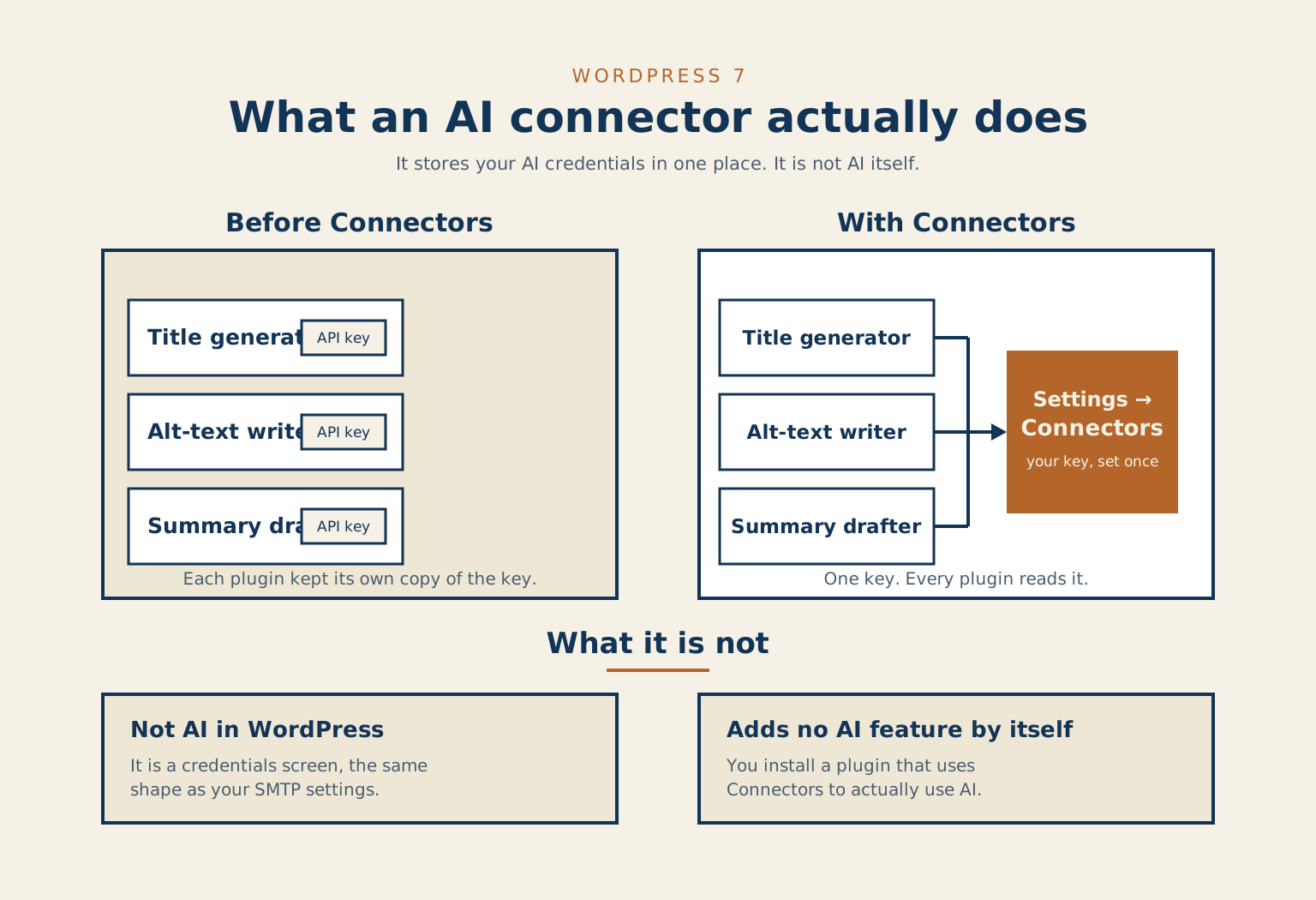
AI Connectors is the news item in this release that I think will get the most coverage and create the most confusion. So here is what it actually is.
Connectors is a settings screen, the same shape as the screen where you tell WordPress your SMTP credentials so it can send email. A place to put credentials once so other things can use them. The artificial intelligence itself comes from your provider.
Four plugins, four keys
What the Connectors screen does is solve a real problem. For the last two years, every WordPress plugin that wanted to use an AI provider, for generating titles, writing alt text or drafting summaries, has had to build its own settings screen, API-key field and error handling. If you had four AI-aware plugins on your site, you had four places to enter the same OpenAI key. Connectors collapses those four places into one. You set your provider and your key at Settings → Connectors, and from then on, any plugin that knows about Connectors uses what you set.
That is genuinely useful, and it sets up the future where more plugins integrate with it. But it does not, on its own, add a single AI feature to your site. To actually use AI for anything, you install a plugin that takes advantage of the Connectors API. An official WordPress plugin for title, excerpt, and alt-text generation shipped alongside the release. Check the plugin directory for current options.
Who should set it up
My recommendation for beginners (the people in my WP101 course): if you are not already paying for OpenAI or Anthropic or Google for some other reason, the right move is to wait. AI Connectors is not going anywhere. The plugins that depend on it will get more useful over the next year. There is no urgency to set one up just because the screen now exists. If you are already paying for one of those services, the value of Connectors is the consolidation, set it up once and your future AI-using plugins will pick it up automatically.
For the high-end WordPress audience (agencies, school boards, organizations with internal AI policy already in place), the Connectors screen matters more, because it is the first time WordPress core gives you a documented, sanctioned place to manage that integration. Your information-security person is going to thank the WordPress team for giving them one place to manage that credential instead of asking every plugin author to invent their own.
If your organization is evaluating WordPress as a migration destination from Arc XP, Brightspot, or another enterprise CMS platform, the Connectors screen is worth factoring into that conversation. If an enterprise team runs several AI integrations, the credential consolidation matters more at that scale. I have written about what the Arc XP and Brightspot to WordPress conversion actually involves, if that transition is on your roadmap.
The command palette is the change you will actually use
I have been using the Command Palette for the last four release candidates, and I cannot imagine going back to clicking through menus to find the screen I want.
Here is what it does. You press ⌘K on a Mac, or Ctrl+K on a Windows machine, anywhere in the admin. A search bar opens at the top of the screen. You type a few letters of the name of the thing you want to do, "users," "menus," "permalinks," "plugins", and the matching admin screens, settings pages, and registered actions appear underneath. You arrow down to the one you want and press Enter, and you are there.
If you have used the same shortcut in modern code editors, Slack, Figma or Notion, the pattern will be familiar within ten seconds. If you have not, it will feel strange for a day, and then you will not want to go back.
Where things live
The reason this matters more than it sounds is that the WordPress admin has, fairly, been described for years as a place where the menu structure is impossible to learn. Some things are under Settings, others under Tools, others under Appearance, and a few under their own top-level item that a plugin added last week. The Command Palette stops asking you to remember where things are. You just remember what they are called.
For the person who got handed the keys to a WordPress site and is still working out what each menu does, this is the single best thing in the release. It is also the easiest to overlook, because it is a keyboard shortcut that does not have an on-screen button to draw your eye. So this is the paragraph I will be re-reading to my training clients for the next six months: press ⌘K. Type "users." Press Enter. That is the new way of getting around.
The fonts page, and the plugin you can probably uninstall
WordPress 7 adds a dedicated font management page. For most site owners, this is a "huh, that is nice" moment. For some site owners, it is a "wait, I can uninstall a plugin now" moment.
If you have ever used a plugin called Use Any Font, or Google Fonts Typography, or any of the dozen other plugins built to solve the "how do I add a font to my theme" problem, the Fonts page is the answer that finally lives in WordPress core. You install or upload a font there, and the font is available across your site without a plugin in the middle.
When core catches up
This is the question I teach in Module 3 of WP101: when is adding a plugin the right answer, and when has core caught up so the plugin is now baggage? WordPress 7 catches up on fonts. If you have a fonts plugin installed for no reason other than fonts, the next monthly maintenance pass is when you replace it with the built-in page and remove the plugin. Fewer plugins is fewer things that can break.
The pattern of "WordPress core caught up, uninstall the plugin" repeats every release or two. When it happens, the right move is not loyalty to the plugin; it is removing it and letting core do the work.
Visual revisions is finally what revisions should have always been
The old WordPress revisions screen has been with us for over a decade, and it has always been technically accurate and practically frustrating. You could see that something changed. What had changed was hidden at a glance. You had to scan two columns of nearly identical text and find the one word that was different.
Visual Revisions in WordPress 7 is the version of this screen that the feature should have been all along. Pick any two revisions of a post or page. The new view compares them directly in the editor, with a slider bar that lets you switch between saves. The page you wrote three weeks ago and the version that is live now are now legible to each other.
For an organization where more than one person writes, this is a quietly enormous change. The conversation that used to be "I think someone changed the second paragraph last week, can you check" becomes a thirty-second look at the timeline. The team member who quietly removed the legal disclaimer two months ago is now traceable in the comparison. The post you accidentally overwrote with a half-finished draft is now recoverable: pick the revision you want and restore it.
None of this needs a plugin or a paid add-on to work.
The change does not require any setting to be turned on. The next time you open the Revisions screen on any post, the new view is there.
The new admin look
Here is what changed, and why none of it should slow you down tomorrow.
The dashboard you log into tomorrow morning will look slightly different from the one you log into tonight. The default colour scheme is now one called "Modern", with a refreshed palette, higher contrast and new typography. When you click between screens, there is a small slide animation, and it switches off if your system asks for reduced motion.
None of this changes how the dashboard works. The Posts menu is still where Posts has always been. The Pages menu is in the same place. Every keyboard shortcut you know still does what it did. The decision the design team made, and I think it was the right one, was to update the look without moving anything that anyone has learned the position of.
Colour scheme and motion
The scheme picker is still at Users → Profile → Admin Colour Scheme, if you would rather choose another. I am leaving mine on Modern, because I think the new one is cleaner, and because in a year's time anyone learning WordPress will be learning it on Modern, and I would rather be looking at the same dashboard they are.
The View Transitions animation between screens is the bit I expected to find tiring. It turns out to take 180 milliseconds and add nothing to my workload. I notice it the first time I click between screens each morning and then I forget it is there.
The feature that got pulled, and why that is the right call
WordPress 7 was supposed to ship with real-time collaboration. The idea was that two editors could open the same post at the same time, see each other's cursors, edit together, the way Google Docs has worked for fifteen years. Real Time Collaboration was on the testing list for release candidates 1 and 2, and in April the whole release was delayed to give testers more time with it.
Why the team pulled it
On May 8, with twelve days to go before launch, the WordPress team announced that real-time collaboration was being removed from the release. The reasons published in the announcement are the kind of reasons that I think every site owner should know about, because they are also the reasons your site is mostly stable: race conditions when two writers save simultaneously, server load when sync events fire across the board, memory efficiency on long editing sessions.
I want to be clear about why I think this was the right call. WordPress runs more sites than any other CMS on the open web. A feature that falls over across the board isn't ready, no matter how good the demo looks. The team tested it, found the cases where it fell over, and pulled it back into the lab. The announcement says a plan for broader testing will follow, to prepare the feature for a future release.
This is the kind of release-engineering decision that does not make the headlines and should. The temptation to ship the feature anyway and patch it later is real, and the team did not give in. Any engineering team of mine needs that same discipline.
The deprecations and breaking changes that affect a few people
For most site owners, the breaking changes in WordPress 7 are invisible. For a few, they matter.
PHP 8.3 or higher is recommended. WordPress still works on PHP 7.4 and up, but the recommendation is 8.3 or greater. If your hosting account is on an old PHP version, this is the week to log into your hosting dashboard and switch up.
The author posts link lost its title attribute. This affects custom themes that use the_author_posts_link() and relied on the "Posts by Author" title attribute. get_the_author_link() and the_author_link() keep theirs by default and gain a parameter that removes it. If your developer maintains your theme, this is a five-minute fix once they read the dev note on Make WordPress Core. If you are on a commercial theme, ask the vendor whether it has an update for this.
The HTML5 script theme support flag was removed. Again, a developer-side change, which the field guide lists as deprecated and removed. Your developer will know whether your theme declares it.
CodeMirror, the syntax-highlighting library used in WordPress's built-in code editors, has been updated to version 5. If you use plugin or theme file editors inside WordPress to write code, which you should not be doing anyway, but I am not your developer, the library behind them has changed.
If none of the above made sense, that is fine. You can stop reading this section. None of it affects what you do on your site.
At a glance
| Change | What it is | This week |
|---|---|---|
| AI Connectors | One credentials screen at Settings → Connectors. Plugins read the key you set once. | Nothing, unless you already run an AI plugin. It adds no AI by itself. |
| Command palette | ⌘K on a Mac, Ctrl+K on Windows, opens admin search from anywhere. | Learn the shortcut. This is the one you will actually use. |
| Fonts page | A dedicated font management page, finally in core. | Check whether you can uninstall a font plugin such as Use Any Font. |
| Visual revisions | Two revisions compared in the editor, with the changes marked. | Use it the next time someone asks what changed. |
| The new admin look | New default scheme, refreshed type, a small slide between screens. | Nothing. Tell your editors the menus have not moved. |
| Real-time collaboration | Pulled on May 8, twelve days before launch, in the third release candidate. | Stop planning around it. It is not in this release. |
| Deprecations | PHP 8.3 recommended; the author posts link lost its title attribute. | Check your PHP version and switch up if you are below it. |
The whole release as a work list. Most rows ask nothing of you, which is the point.
Find the plugin on your site that is doing a job WordPress now does on its own.
Common questions about WordPress 7
Is it safe to update to WordPress 7? Yes. The release went through four release candidates, and the changes that break things land on plugin developers more than on site owners. Back up first, update on a quiet day, and keep a way to roll back.
Does AI Connectors put AI on my site? No. It is a screen for storing one AI provider key in a single place, the same shape as your email settings. To actually use AI you still install a plugin that reads that key. I wrote more about what that layer means, and where your own judgment still matters, in a companion piece on the AI layer.
Do I need to do anything about the collaboration feature that was pulled? No. Real-time collaboration was removed before launch, and the team says it will be re-evaluated during the 7.1 release cycle. Nothing on your site depends on it today.
What if I would rather not do the update myself? Get on your developer's calendar for the week after launch. If you want to learn to do it yourself, I teach the update step by step, and you can always ask me directly.
What I am going to do this week
Three things, in order.
I updated WordPress 7 on my own production sites the Tuesday after launch, after backing them up. I checked the Visual Revisions screen on the next thing I published. The timeline view is exactly what it promised to be.
I set up a Connectors entry with the AI provider I already pay for. The setup took four minutes and the credential has already been picked up by a couple of plugins.
I spent ten minutes each day the first week using the Command Palette as my only way of getting around the admin. By the end of that week, I was using it by reflex.
Everything else in the release is fine to leave alone. Visual Revisions appears when I need it. The Modern colour scheme is the new default. The Fonts page is there when I am ready to remove a plugin. There is no rush.
Checked against the WordPress.org 7.0 announcement and version page, the field guide and author-link dev note on make.WordPress.org, the real-time collaboration post, RC3, RC4 and the requirements page, on 2026-10-11.
References
- WordPress 7.0 “Armstrong”, WordPress News
- Version 7.0, WordPress documentation
- WordPress 7.0 Field Guide, Make WordPress Core
- Removing title attributes in author link functions, Make WordPress Core
- Real-time collaboration will not ship in WordPress 7.0, Make WordPress Core
- The path forward for WordPress 7.0, Make WordPress Core
- WordPress 7.0 Release Candidate 2, WordPress News
- WordPress 7.0 Release Candidate 3, WordPress News
- WordPress 7.0 Release Candidate 4, WordPress News
- Requirements, WordPress.org
- Usage statistics and market share of content management systems, W3Techs