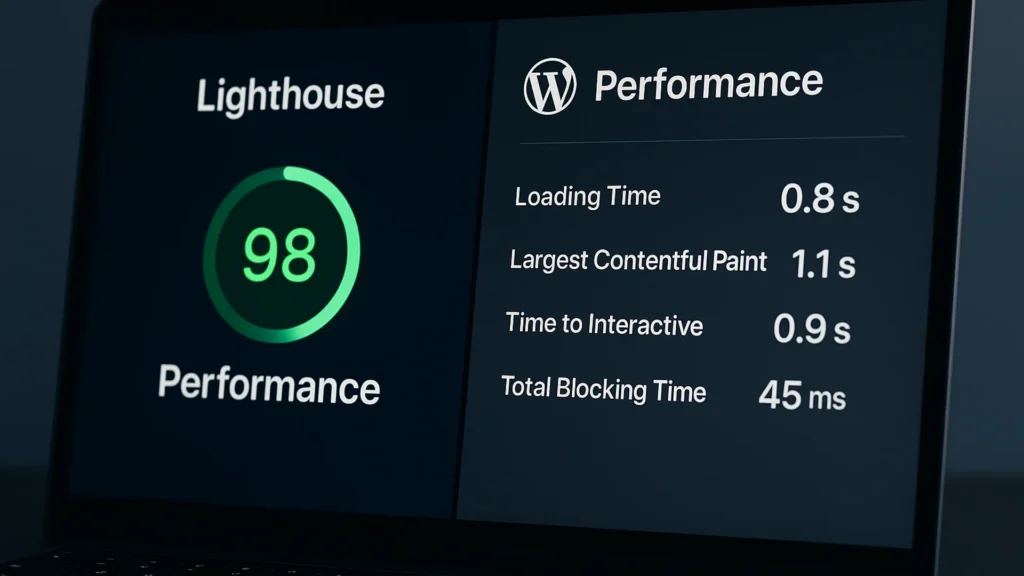
A perfect Lighthouse score is the easiest way to lose three hours and end up with a slightly faster homepage that still doesn’t convert. The score measures what’s measurable in 30 seconds inside a browser; the things that actually drive revenue impact sit outside that window. Here’s what to look at instead.
Quick Answer
Lighthouse measures what a single synthetic page load looks like under controlled conditions. Real performance is what your actual visitors experience across many pages, devices, and network conditions over time — and the gap between those two pictures is where most WordPress sites silently lose conversions.
Optimise for the second picture. Use Lighthouse only as a debugging surface, not a target.
What Lighthouse measures (and what it doesn’t)
Lighthouse runs a single page in a controlled emulator with throttling presets and reports a composite score. That’s useful for catching obvious regressions and for the dev team. It is not what your visitor experiences.
What Lighthouse does not see:
- Cache state — your real users hit warm caches; Lighthouse always tests cold.
- Return visits — repeat sessions are dramatically faster, and Lighthouse can’t simulate them.
- Network variation — a fixed throttle is not the long tail of real mobile networks.
- Plugin behaviour under load — Lighthouse runs against an idle server with one synthetic request; production plugins behave differently when fifty requests hit at once.
- Third-party script timing in production — analytics, tag managers, and live chat behave differently in a real browser session than in a Lighthouse run.
The score is a debugging surface. Treat it like the check-engine light, not the speedometer.
The metrics that actually predict revenue impact
Two layers matter: the SEO floor (Core Web Vitals) and the UX bar above it (real-user monitoring).
Core Web Vitals are the threshold Google uses for ranking. The current targets:
Above the floor, the metrics that map to revenue are:
- Real-user monitoring (RUM) percentiles — track p75 and p95 LCP and INP per template. The average is misleading; the slow tail is where users abandon.
- Bounce rate by device type — if mobile bounces 12 points higher than desktop, performance is probably the cause.
- Time-to-interactive on conversion-critical templates — your homepage is not where you make money. Measure your service pages, your contact page, and your highest-converting lead magnets.
If you only watch one number, watch p75 LCP on the templates that get the most service-page traffic. That number changes when something real has changed.
Where WordPress slows itself down
WordPress overhead is the single biggest source of performance debt on a typical service business site, and Lighthouse rarely surfaces it because the bloat happens server-side before the HTML reaches the browser.
The usual suspects, in order of how much damage they do:
- Plugins running on every request. Most “set it and forget it” plugins register hooks that fire on every page load, whether they’re needed or not. A site with 30 plugins typically has 5-8 that contribute meaningful overhead.
- Unscoped query loops. Themes that re-query posts in the sidebar or footer on every page generate database trips that should be cached.
- the_content filter chains. Every active plugin adds filters; the cumulative cost on a content-heavy template can be 200-400ms before any HTML renders.
- Missing object cache. Without persistent object cache (Redis or Memcached), WordPress hits the database for every option, term, and meta lookup. Hosts that don’t ship object cache are sites that will never be fast.
- Fragment caching gaps. Header, footer, and sidebar partials that don’t get cached because they reference the current user, the current cart, or the current location.
The diagnostic tool here is not Lighthouse — it’s Query Monitor running on a staging clone of your site, with the slow-query log enabled.
The three fixes that move the needle most
Once you’ve measured the actual problem, the three highest-ROI interventions, in order:
- Cache-first architecture. Page cache (CDN edge or Varnish), object cache (Redis or Memcached), opcache (PHP byte-code), and aggressive HTTP cache headers on static assets. Most managed WordPress hosts ship two of these four; getting all four in place typically halves p75 LCP without touching application code.
- Plugin audit. Disable plugins one by one on staging and re-measure. Anything that adds more than 50ms to a page load needs a justification — either it’s load-bearing for a feature, or it’s coming out. The goal isn’t fewer plugins; it’s plugins that earn their cost.
- Image pipeline. WebP or AVIF as the served format with JPEG/PNG fallback; properly sized variants for the actual breakpoints in use; native lazy-loading on everything below the fold; the LCP image preloaded explicitly. Most WordPress sites ship images 3-5× larger than the rendered size — this fix alone often moves CLS and LCP by enough to flip a Core Web Vitals score from “Needs Improvement” to “Good”.
Anything past these three is fine-tuning — important fine-tuning, but the gains are smaller and the effort is larger.
Common mistakes that game the score without helping users
The Lighthouse score is gameable. The user experience is not. Common ways teams chase the score and regress real performance:
- Loading the LCP image as low-priority. A
loading="lazy"on the hero image takes a tenth of a second off the simulated load and adds half a second to the real one. - Defer-everything JavaScript strategy. Deferring third-party scripts is good; deferring critical UI handlers turns the first interaction into a stutter. INP regresses, and INP is part of the ranking signal.
- Critical CSS inlining without a path strategy. The first page is fast; the second page redownloads everything because the critical CSS isn’t reused. Net new render time goes up across the session.
- Score-chasing the homepage while leaving service pages slow. The homepage usually doesn’t convert. The service page does. A site with a 95 homepage and 60 service pages is worse than the inverse.
The pattern is the same across all four: optimising for the test rather than for the test’s intent.
A 15-minute audit you can run today
Before you spend a half-day on a Lighthouse score, run this:
- Open Chrome DevTools and switch to the Network tab.
- Throttle the connection to “Slow 4G” and set CPU throttling to 4× slowdown.
- Disable the cache (checkbox at the top of the Network tab).
- Hard reload the most important page on your site — your top-converting service page, not your homepage.
- Note the three slowest items by transfer size and the three slowest by load time.
- Repeat for one other template type (archive, blog post, contact).
If the slowest items are the same across templates, you have a sitewide problem (cache, theme, font). If they’re different, you have a template-specific problem (a plugin scoped to that template, a unique third-party script). The diagnosis takes ten minutes and tells you where to spend the next ten hours.
When to bring in a specialist
Most performance work is DIY-able if you have a long afternoon and a willingness to break things on staging. Where it stops being DIY-able:
- Server-side bottlenecks that need host-level access (PHP-FPM tuning, MySQL slow-query logs, Redis configuration)
- Cache misconfiguration that shows different behaviour on different pages
- Plugin conflicts where two plugins compete on the same hook and the resolution requires reading both source codes
- Template-level slowness on conversion-critical pages where any change risks the conversion path
If you’re spending more than four hours on a WordPress site performance problem and the numbers haven’t moved, you’re solving the wrong problem. That’s the moment to bring in someone who’s done this before — a performance specialist saves the back-half of the time, not the front.
Last Reviewed
This article was last reviewed on May 4, 2026 for accuracy and relevance.