Critical Rendering Performance isn't just about shaving off a few milliseconds; it’s about the psychological warfare of perceived performance.
We have collectively fallen for a dangerous superstition: the “Perfect 100.” We’ve all seen it—the WordPress developer who spends forty billable hours hunting a elusive green circle in Lighthouse, only to realize their site still feels like wading through digital molasses on a 4G connection.
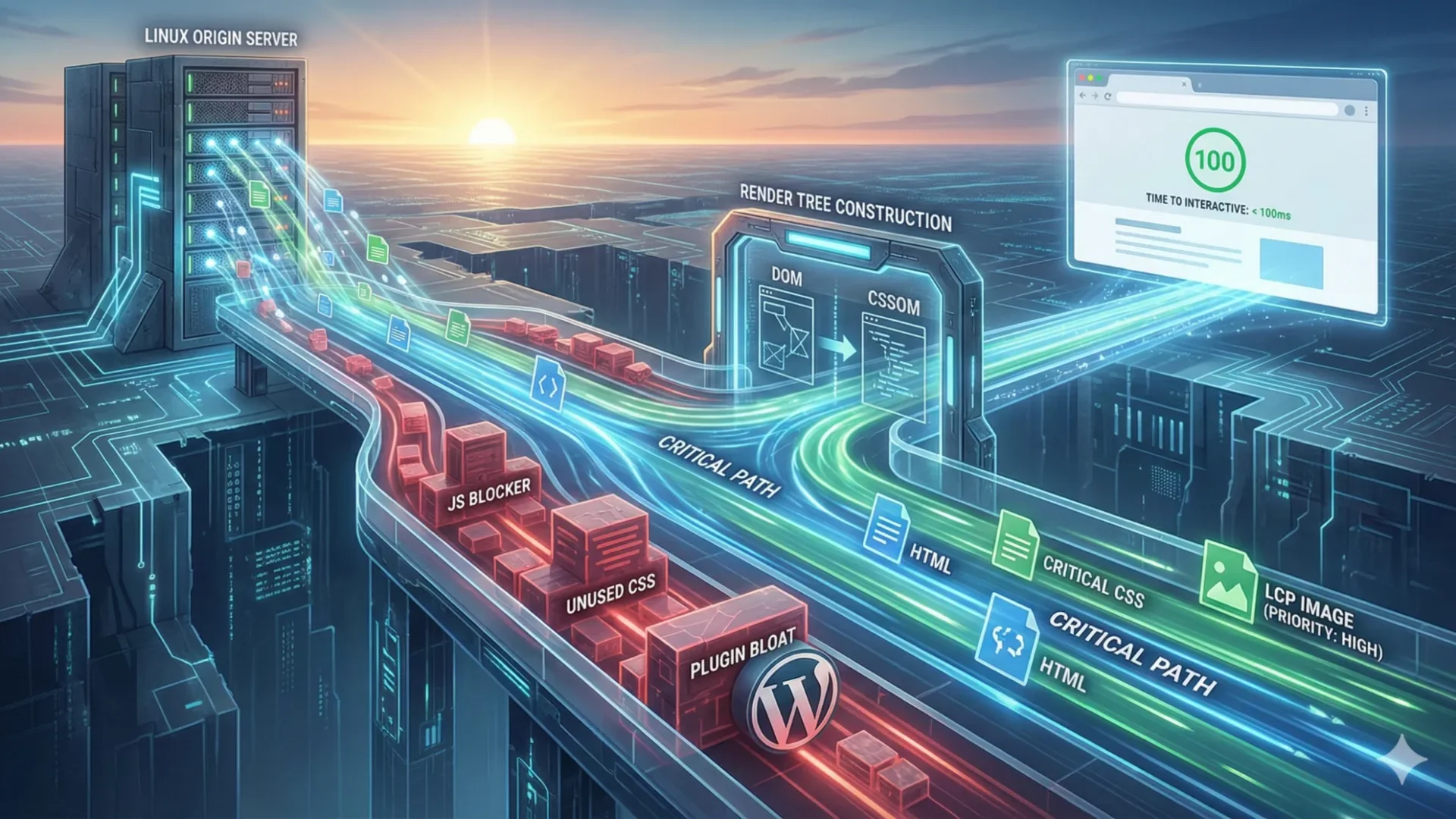
If you’re reading this, you’re likely past the “install a bloated optimization plugin” phase of your career. You understand that critical rendering performance isn’t a score; it’s a race against the browser’s internal clock. It is the art of orchestrating a complex symphony of Linux-level packet delivery, DOM construction, and the brutal prioritization of assets.
Welcome to the deep end. We aren’t here to optimize for bots; we’re here to optimize for the human nervous system.
Table of Contents
The Prologue: Beyond the Vanity Metrics
The industry has a “speed” problem, but it’s mostly a definition problem. For years, we measured “Window Load,” a metric as antiquated as a dial-up modem. In a modern, asset-heavy environment, the browser is a construction site where the foundations (HTML), framing (CSS), and electrical (JS) are often being delivered by different trucks at different speeds.
To master critical rendering performance, we must first kill our darlings. A “fast” site is not one that finishes loading quickly; it is one that starts being useful immediately.
The New Hierarchy of Performance
Professional-level optimization requires shifting focus from generic “load times” to the Core Web Vitals that actually dictate user retention:
Metric
The Technical Reality
The “User” Translation
LCP (Largest Contentful Paint)
When the largest visual element is rendered.
“Is this page actually useful yet?”
INP (Interaction to Next Paint)
The latency of the longest user interaction.
“Why does this button feel broken?”
CLS (Cumulative Layout Shift)
The visual stability of the page during load.
“Stop moving the ‘Buy’ button while I’m clicking it!”
The “Critical Path” Fallacy
Most developers treat the Critical Rendering Path (CRP) as a linear checklist. In reality, it’s a resource war. Every time your WordPress theme calls an external Google Font or a “helpful” tracking pixel, it’s throwing a roadblock in front of the browser’s parser.
The browser is a desperate creature. It wants to paint pixels, but it is legally (or rather, programmatically) obligated to stop everything if it hits a synchronous <script> tag or a non-optimized CSS file. Managing this path requires a surgical understanding of how the Linux server pushes these assets and how the browser’s main thread consumes them.
Key Takeaway: The 100ms Rule The human brain perceives any action under 100ms as instantaneous. Your goal isn’t to make the entire page load in 100ms—that’s a fool’s errand in a CMS-heavy environment. Your goal is to deliver the Critical Path assets so efficiently that the user perceives the site is ready before the first byte of your heavy “below-the-fold” JS even arrives.
The Handshake: TCP, TLS, and the Linux Underbelly
If the browser is the construction site, the Linux server is the supply chain. Most developers spend their lives obsessing over the “site,” completely oblivious to the fact that their supply chain is being managed by a bureaucratic nightmare of networking protocols.
Before the browser can even think about the critical rendering performance of your CSS, it has to survive the “Networking Gauntlet.” This is where sub-second performance lives or dies. If your server-side handshake is slow, your “optimized” frontend is just lipstick on a high-latency pig.
The TCP “Slow Start” Trap
TCP (Transmission Control Protocol) is inherently pessimistic. It doesn’t know your bandwidth capacity, so it starts by sending a tiny amount of data—usually about 14KB (the Initial Congestion Window or initcwnd)—and waits for an acknowledgment.
For a WordPress site, this is a disaster. If your critical CSS and the top of your HTML exceed this 14KB limit, the browser has to wait for a round-trip to the server just to get the rest of the instructions.
The Professional Move: Tune your Linux kernel. By increasing the initcwnd to 10 or higher, you can push more of the Critical Path in the first “flight” of packets.
The TLS Tax: Encryption is Not Free
We all use HTTPS (or we should, unless it’s 1998), but every TLS handshake adds round-trips. On a high-latency mobile connection, this can add 200-500ms of “dead time” where the browser is just staring at a white screen.
To mitigate this, the modern engineer looks at two specific Linux-level optimizations:
TLS 1.3: It reduces the handshake to a single round-trip. If your server isn’t running it, you’re voluntarily choosing to be slow.
OCSP Stapling: Instead of the browser reaching out to a Certificate Authority to verify your SSL (another round-trip!), the server “staples” the proof to the handshake.
Nginx vs. The World: Why Your Config is Your Bottleneck
In the WordPress ecosystem, we often inherit default Nginx or Apache configs that are “safe” rather than “fast.” A professional-grade Linux environment for high performance should leverage HTTP/2 (or HTTP/3/QUIC).
Unlike the old HTTP/1.1, which could only download one thing at a time per connection (causing the infamous “Head-of-Line Blocking”), HTTP/2 allows for multiplexing. The browser can ask for your style.css, your logo.svg, and your main.js simultaneously over a single connection.
The Linux Performance Checklist
Keepalive Timeout: Ensure this is tuned so the connection doesn’t drop between the HTML and CSS requests.
Gzip/Brotli: Brotli is roughly 15-20% more efficient than Gzip. If your Linux distro supports it, use it.
TCP Fast Open (TFO): Allows data to be sent during the initial handshake, shaving off precious milliseconds.
The DOM and the CSSOM: A Dysfunctional Marriage
If the Linux kernel is the logistics manager, the DOM (Document Object Model) and the CSSOM (CSS Object Model) are the two lead actors in a high-stakes play who refuse to go on stage until the other is perfectly ready.
To the uninitiated, HTML is just text. To the browser, it’s a construction project. But here is the catch: the browser cannot render a single pixel until it has built both models and combined them into the Render Tree. This is the “Render-Blocking” phase, and it’s where most WordPress sites lose their audience before the first act even begins.
The CSSOM: The Silent Blocker
We often talk about JavaScript being the performance villain, but CSS is the one holding the gun. The browser is inherently protective of the user experience; it refuses to show a page that looks like a 1994 Craigslist ad (a phenomenon known as the Flash of Unstyled Content or FOUC).
Consequently, the browser pauses the construction of the Render Tree until it has fully downloaded and parsed every single CSS file linked in the <head>.
The Problem: WordPress themes often load massive style.css files—and worse, secondary plugin stylesheets—that contain 90% “dead wood” (CSS not used on the current page).
The Nuance: The browser’s parser is blocked by CSS even if the CSS doesn’t affect the initial viewport.
The Render Tree: The Final Arbiter
The Render Tree is the “Golden Path.” It filters out elements that aren’t visible (like <head> or anything with display: none) and matches the CSS selectors to the DOM nodes.
If your WordPress site uses a “Mega-Menu” plugin that injects 500 hidden <div> tags and 2,000 lines of CSS just to handle a hover state, you are forcing the browser to perform massive amounts of “Recalculate Style” work for elements the user might never even see.
Strategy: Critical CSS or Bust
To optimize critical rendering performance, we must break the dependency. The goal is to extract the “Above the Fold” CSS and in-line it directly into the HTML <head>. This allows the browser to build the CSSOM for the visible area without waiting for the heavy-assets.css file to travel across the Atlantic.
The Engineer’s Nuance: The 14KB Threshold (Again)
Remember our friend from the Linux section? If your HTML plus your In-lined Critical CSS stays under 14KB, the browser can render the initial screen in a single TCP round-trip. This is the “Speed of Light” benchmark for modern web engineering.
Avoid @import: It’s a performance sin. It creates a serialized dependency chain that forces the browser to discover files one by one rather than in parallel.
Media Queries: Use the media attribute on <link> tags (e.g., media="print" or media="(max-width: 600px)"). This tells the browser: “Download this, but don’t block rendering for it on a desktop.”
The “Render Tree” Meat Grinder: Layout, Paint, and the Cost of Complexity
Once the DOM and CSSOM have finished their awkward standoff and finally merged into the Render Tree, the browser enters the most computationally expensive phase of the journey. This is where the abstract tree of nodes becomes a physical map of pixels.
In the WordPress world, this is where “Page Builder Bloat” transforms from a backend database nuisance into a frontend performance catastrophe. If your site feels “heavy” or “janky” during the initial load, you are likely witnessing the browser struggling through the “Meat Grinder.”
The Layout Phase (Reflow)
The browser now knows what elements to show and how they should look, but it doesn’t know where they go. Layout is the process of calculating the geometry of every visible element.
The Recursive Trap: Layout is almost always “global.” Because of the way the CSS box model works, changing the width of a single <div> at the top of the DOM can trigger a recursive recalculation of every element below it.
The WordPress Problem: Page builders like Elementor or Divi often wrap a single piece of text in five or six nested <div> containers to achieve a specific margin or shadow. For a complex page, the browser isn’t just calculating 50 elements; it’s calculating the geometric relationships of 2,000+ nodes.
The Paint Phase: The GPU’s Burden
After Layout comes Paint. This is the process of filling in the pixels—text, colors, images, borders, and shadows. While modern browsers try to offload some of this to the GPU, certain CSS properties are “expensive” to paint.
The “Expensive” CSS Shortlist:
box-shadow with large blurs.
border-radius on elements with complex backgrounds.
filter: blur() or opacity changes.
mix-blend-mode.
If you have a Linux server optimized for a 50ms Response Time (TTFB), but your CSS forces the user’s mobile CPU to spend 400ms painting complex gradients and shadows, your server-side wins are instantly neutralized.
The Composite Phase: The Final Layering
Finally, the browser performs Compositing. It takes the different layers it has painted (like a sticky header or a parallax background) and stitches them together.
Professional Tip: Use will-change: transform or opacity for animations. These properties allow the browser to skip the Layout and Paint phases entirely and go straight to Compositing, which is handled by the GPU.
Why DOM Depth is Your True Enemy
A “shallow” DOM is a fast DOM. Every additional layer of nesting in your WordPress theme increases the time the browser spends in the “Meat Grinder.”
Metric
Lean Engineering
Legacy Page Builder
DOM Nodes
400 – 700
2,500 – 5,000+
Max Depth
8 – 12 levels
25 – 40 levels
Main Thread Work
~200ms
~1,200ms+
The “Jank” Audit To see the Meat Grinder in action, open Chrome DevTools, go to the Performance tab, and look for “Recalculate Style” and “Layout” events. If these are taking up more than 50ms of the main thread, your critical rendering performance is being strangled by your HTML structure, not your server.
The JavaScript Interruption: The “Parser-Blocking” Villain
If the CSSOM is a silent blocker, JavaScript is a loud, demanding diva that insists on stopping the entire production until its dressing room is exactly right.
In the standard Critical Rendering Path, whenever the browser’s HTML parser encounters a <script> tag, it pauses. It doesn’t matter if that script is a 200KB tracking pixel or a critical UI component; the browser stops building the DOM, fetches the script, executes it, and then resumes. This is “Parser-Blocking,” and in the WordPress ecosystem—where plugins treat the <head> like a junk drawer—it is the leading cause of death for a site’s critical rendering performance.
The Synchronous Standoff
Why does the browser stop? Because JavaScript can use document.write(). The browser, in its infinite caution, assumes the script might change the very HTML it is currently parsing.
On a Linux-hosted server with high latency, this is catastrophic. The parser sits idle, the main thread hangs, and your LCP metric begins to bleed.
The Modern Trio: Async, Defer, and Module
To move from a “Junior dev” to an “Engineer,” you must stop using raw <script> tags. We have three main tools to prevent the parser-blocking apocalypse:
async: The script is downloaded in the background. Once it’s finished, the parser pauses only to execute it. This is great for independent scripts like ads or analytics.
defer: The script is downloaded in the background and held in a queue until the HTML is fully parsed. This is the “Golden Standard” for most WordPress functionality.
type="module": These are deferred by default and allow for modern, tree-shaken code that doesn’t pollute the global namespace.
The “Long Task” Problem
Even if you defer your JavaScript, you aren’t out of the woods. Once the script executes, it takes over the Main Thread. If a script takes longer than 50ms to run, it’s classified as a “Long Task.”
During a Long Task, the browser is essentially frozen. If a user tries to click a menu or scroll, the browser can’t respond. This is exactly what the INP (Interaction to Next Paint) metric measures. In WordPress, this is frequently caused by heavy “Revolutions Sliders” or overly ambitious “Animation” libraries that hammer the CPU the moment the DOM is ready.
Strategy: The “JS-Lite” Above the Fold
A sophisticated approach involves a “Code Split.” We identify the absolute minimum JavaScript needed for the initial viewport (e.g., the mobile menu toggle) and in-line it or preload it. Everything else—your chat widgets, your heatmaps, your parallax scripts—should be pushed to the footer or loaded via a setTimeout strategy to yield to the main thread.
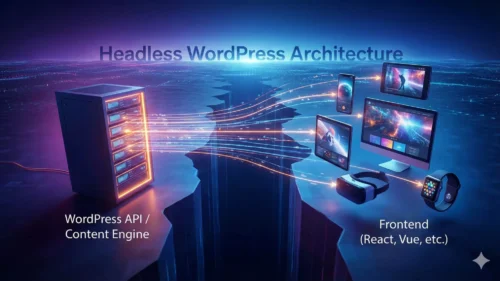
Industry Nuance: Hydration is the New Bottleneck If you are using a headless WordPress setup with a framework like React or Vue, beware of “Hydration.” This is the process where the JS “takes over” the static HTML. If your bundle is too large, the user sees the content but cannot interact with it for several seconds—a frustrating “Uncanny Valley” of performance.
The WordPress Tax: The Hooks, The Plugins, and The Bloat
If the Linux server is the engine and the browser is the driver, WordPress is often the 500-pound passenger sitting in the backseat, insisting on bringing ten suitcases for a day trip.
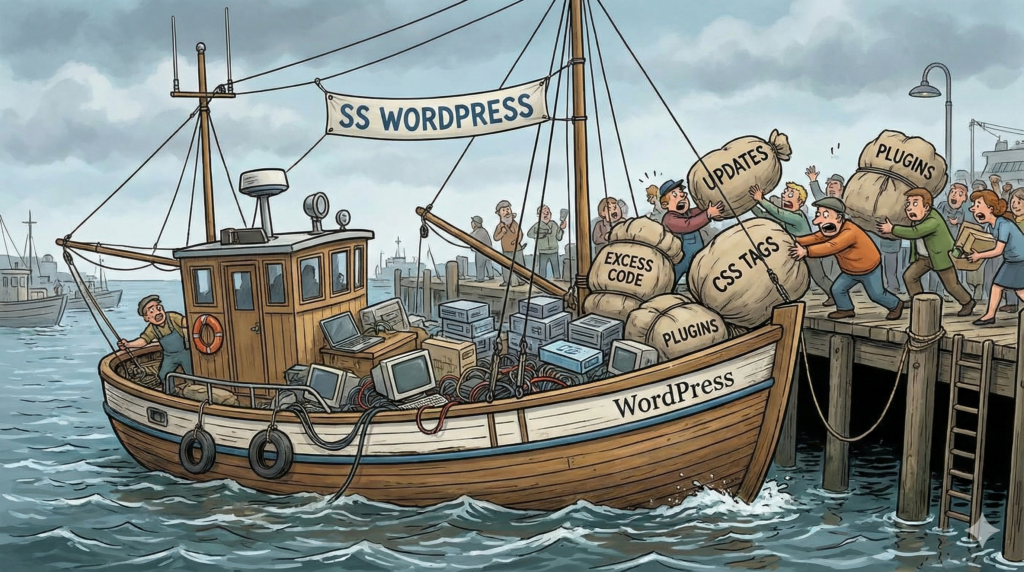
The “WordPress Tax” isn’t a single line of slow code; it’s a cumulative debt. Between the core software, the theme, and that “must-have” social media feed plugin, the wp_head() function often becomes a graveyard of unoptimized assets. Every time a developer installs a plugin to solve a minor problem, they are likely adding a new blocking request to the critical rendering performance timeline.
The wp_head() Graveyard
By default, WordPress is a “helpful” neighbour that nobody asked for. It injects emojis, REST API links, oEmbed snippets, and generator tags into your HTML header. Individually, these are bytes; collectively, they are a latency tax.
But the real crime is Asset Proliferation. A typical contact form plugin will load its CSS and JavaScript on every single page of your site—even if the form only exists on the “Contact” page. This means your homepage’s Critical Rendering Path is being held hostage by code that serves absolutely no purpose for the current view.
Let’s ignore what plugins can do for a moment and just look at how modern WordPress adds new stylesheets for each block type in the editor, piling dozens of external links into the wp_head() at a cost to your website.
Surgical Dequeuing: The Engineer’s Scalpel
Professional WordPress engineering requires a “Whitelist” mentality rather than a “Blacklist” one. We use wp_dequeue_script and wp_dequeue_style to strip the site down to its skeletal essentials, then conditionally re-add assets only where they are needed.
The industry’s reliance on “All-in-One” optimization plugins is a double-edged sword. While tools like WP Rocket or Autoptimize are excellent for generalists, they often act as a “black box.” They might concatenate (combine) all your CSS into one massive file.
In the age of HTTP/2 and HTTP/3 on Linux, concatenation is often an anti-pattern. If you combine twenty 5KB files into one 100KB file, and a user changes a single line of CSS, they have to re-download the entire 100KB. Smaller, modular, cached files are the hallmark of a sophisticated CRP strategy.
The Database Bottleneck: PHP vs. The Clock
Critical performance begins before the first byte leaves the server (TTFB). If your WordPress site is performing 150 database queries just to render the header, your Linux server’s CPU is redlining before the browser even gets its instructions.
Object Caching: Use Redis or Memcached on your server to store the results of expensive queries.
Query Monitors: Use tools like the “Query Monitor” plugin during development to find the specific “Bad Actor” plugin that is stalling your server’s response.
The Performance Budget
For every new plugin or feature, ask: “Does this provide more value than the 200ms of LCP it’s going to cost me?” If the answer isn’t a resounding ‘Yes,’ it belongs in the trash, not the codebase.
Strategic Resource Prioritization (The VIP List)
In the chaotic rush of a page load, the browser is like a bouncer at an exclusive club. Everyone—the CSS, the hero image, the tracking pixel, and the fonts—is screaming to get in at once. If you don’t provide a guest list, the browser uses its own internal heuristic to guess who’s important. Spoiler: the browser is often wrong.
To master critical rendering performance, you must move beyond passive loading and start using Resource Hints. This is how we tell the browser, “Stop what you’re doing; this specific asset is the VIP.”
1. The Preload: The “Front of the Line” Pass
rel="preload" is a mandatory instruction. You use it when you know a resource will be needed soon, but the browser hasn’t discovered it yet (like a font file hidden inside a CSS file).
The Trap: Preload too many things, and you create a “bottleneck at the door,” delaying the very items you were trying to speed up.
The Pro Move: Only preload assets required for the initial viewport—specifically your LCP image and your primary brand font.
2. Fetch Priority: The “Importance” Flag
This is the newest weapon in the Senior WordPress Engineer’s arsenal. While preload tells the browser when to download, fetchpriority tells it how much to care.
By adding fetchpriority="high" to your LCP image (e.g., that big hero banner), you ensure the browser allocates maximum bandwidth to it immediately.
Conversely, use fetchpriority="low" for non-critical assets like “below-the-fold” images or non-essential scripts.
3. Preconnect and Prefetch: Thinking Two Steps Ahead
Preconnect: Use this for essential third-party origins (e.g., Google Fonts or a CDN). It handles the DNS lookup, TCP handshake, and TLS negotiation in the background before the actual request is made.
Prefetch: This is for the next page. If you’re reasonably sure a user will click “About Us,” you can prefetch those assets during the browser’s idle time.
Warming up third-party connections (CDNs, API endpoints).
FetchPriority
Suggestion
Ranking the importance of assets the browser already sees.
Prefetch
Low-priority
Speculative loading for subsequent page navigations.
The Linux/Server-Side Synergy: Early Hints (103)
If you really want to flex your engineering muscles, look into HTTP/2 Early Hints (Status Code 103) on your Linux server. This allows the server to send the “Guest List” (the Link headers for preloading) to the browser while the PHP/WordPress engine is still busy thinking about the database query. It effectively kills the “Wait Time” between the initial request and the discovery of assets.
Key Takeaway: The LCP Hero The most common performance sin in WordPress is “Lazy Loading” the hero image. Never lazy-load anything in the initial viewport. Instead, use fetchpriority="high" and rel="preload" to ensure that hero image starts downloading before the CSS even finishes parsing.
Image Optimization: It’s Not Just “Compressing”
In the context of critical rendering performance, images are the heavyweights. They represent the largest portion of the average web page’s byte size. But professional optimization isn’t just about running a script to “squish” a JPEG; it’s about Responsive Delivery and Format Sovereignty.
If your WordPress site is serving a 1920px wide image to an iPhone user on a shaky 4G connection, you aren’t just wasting bandwidth—you’re actively sabotaging your LCP.
The Format Wars: WebP and AVIF
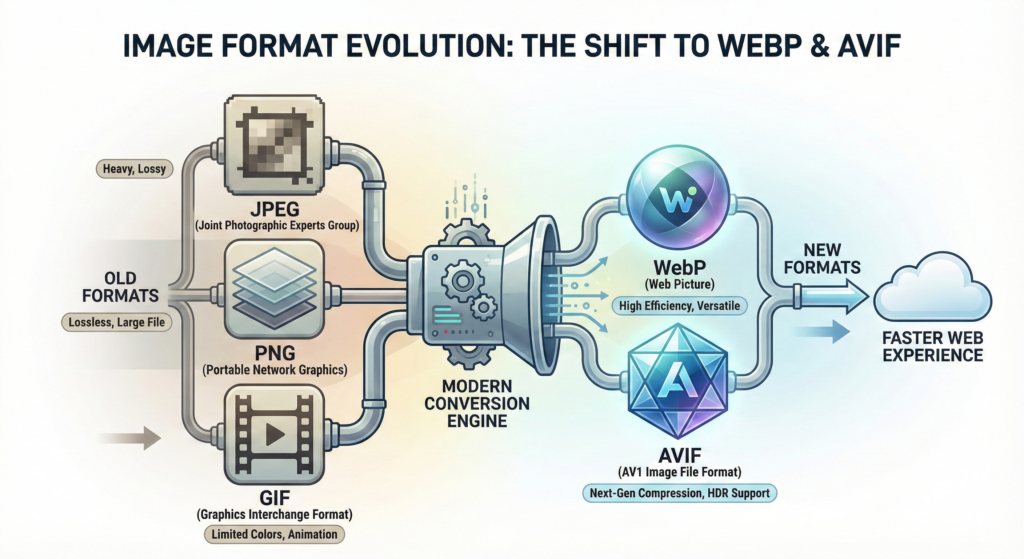
The era of the “General Purpose JPEG” is over. Modern Linux servers and browsers now support formats designed for the web:
WebP: The industry standard. Usually 25-34% smaller than JPEG at equivalent quality.
AVIF: The new frontier. It offers even better compression than WebP, especially in high-detail areas, though encoding it on your server can be CPU-intensive.
The srcset and sizes Complexity
WordPress does a decent job of generating multiple image sizes out of the box, but “decent” isn’t “Senior Engineer” level. You must ensure your theme’s code correctly implements the sizes attribute.
Without a proper sizes attribute, the browser assumes every image is 100vw (the full width of the screen) until the CSS is parsed. This leads to the browser downloading a massive image, only to realize later it only needed a 300px thumbnail. This is a classic Critical Rendering Path failure.
Decoding and Lazy Loading: The Subtle Art
The loading="lazy" attribute is a miracle for performance, but it is frequently weaponized against the user by accident.
The Golden Rule: Never, under any circumstances, lazy-load an image that appears in the initial viewport. This delays the LCP while the browser waits for the “scroll” intent.
The Decoding Hint: Use decoding="async". This tells the browser to decode the image off the main thread, preventing those tiny micro-stutters (jank) during page scrolling.
The CSS Background Image Trap
Images loaded via CSS background-image are the “Ninjas” of the rendering world—the browser doesn’t know they exist until it has parsed the CSS and applied the styles to the DOM. This makes them inherently slower to load than standard <img> tags.
The Fix: For hero backgrounds, consider using a standard <img> with object-fit: cover and a high fetchpriority, or use a preload hint in the HTML head to alert the browser to the background image’s existence before it even reads the stylesheet.
Caching at the Edge: The CDN vs. The Origin
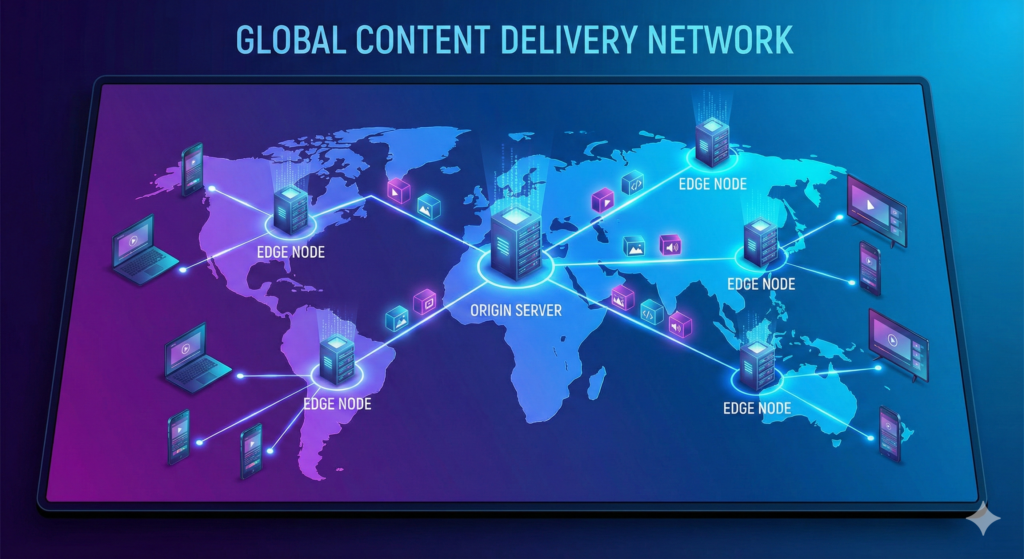
In the world of critical rendering performance, distance is the enemy. Even if you have a perfectly tuned Linux kernel and a lightning-fast NVMe drive, the laws of physics are non-negotiable. If your server is in Virginia and your user is in Tokyo, that request is going to take ~200ms just to travel.
The goal of high-end engineering is to make your origin server—your WordPress installation—as irrelevant as possible for the average visitor. We do this by moving the entire “decision-making” process to the Edge.
The Cache-Control Manifesto
Most developers treat caching as a “set it and forget it” checkbox in a plugin. A Senior Engineer treats it as a precision instrument. Your Cache-Control headers are the instructions you give to every server between your origin and the user’s browser.
public, max-age=31536000, immutable: This is for your versioned assets (JS, CSS, Fonts). You are telling the world, “This file will never change; cache it forever.”
s-maxage: This specifically tells the CDN (the “shared” cache) how long to hold the file, which can be different from how long the browser holds it.
Stale-While-Revalidate (SWR): The Performance Cheat Code
This is arguably the most powerful header in modern web architecture. It allows the CDN to serve a “stale” (slightly out-of-date) version of a page to the user instantly, while it fetches the fresh version from your WordPress server in the background.
Beyond Static Files: Edge Functions
Static caching is easy. The real challenge in WordPress is “Dynamic” content—logged-in users, shopping carts, or localized content. This is where Edge Compute (like Cloudflare Workers or Fastly Compute) changes the game.
Instead of hitting your Linux origin to determine if a user is logged in, you can run a tiny piece of JavaScript at the Edge. This script can inspect the user’s cookies and decide which version of the cached page to serve. You are essentially moving your “Routing Logic” from slow PHP to ultra-fast Edge nodes.
The “Single Point of Failure” Myth
“But what if the CDN goes down?” If Cloudflare or AWS CloudFront goes down, half the internet is dark anyway. Your job is to ensure that your Linux origin is optimized to handle the “Cache Miss” storm that follows a purge.
The Edge Strategy
Full Page Caching: Don’t just cache images; cache the entire HTML output of your WordPress pages.
Bypass on Cookie: Configure your CDN to bypass the cache only for specific cookies (like wp-postpass_* or wordpress_logged_in_*).
Tiered Caching: Use a global CDN that has “Regional Tiered Cache” to ensure that even if one edge node misses, it checks a nearby “mega-node” before waking up your server.
The Font Burden: Typography without the Tears
If images are the heavyweights, fonts are the “invisible” saboteurs. They are often the primary cause of Cumulative Layout Shift (CLS)—that jarring moment when the text on your WordPress site suddenly jumps from a generic Arial to your sophisticated brand serif, pushing the paragraph three inches down the screen just as the user tries to read it.
To the browser, a web font is a “delayed dependency.” It discovers the need for the font only after it has parsed the CSS, but it won’t show the text until the font file arrives—unless you tell it otherwise.
The font-display Strategy
The font-display property is your primary tool for managing the Critical Rendering Path of typography.
swap: This is the performance advocate’s choice. It tells the browser to show a system fallback font immediately and “swap” it for the web font once it loads.
block: The browser hides the text (the “Flash of Invisible Text” or FOIT) for up to three seconds while waiting for the font. This is a disaster for perceived performance.
Matching the Fallback: The “Size-Adjust” Miracle
The reason font-display: swap causes layout shifts is that different fonts have different x-heights and widths. When the swap happens, the text container changes size.
Modern CSS now allows us to use @font-face descriptors like size-adjust, ascent-override, and descent-override. By applying these to your local fallback font (like Roboto or Arial), you can “stretch” or “shrink” the system font to perfectly match the dimensions of your custom web font.
Subsetting: Why Load the Whole Alphabet?
Most Google Fonts come with character sets for dozens of languages. If your site is only in English, you are forcing the user to download Cyrillic, Greek, and Vietnamese characters they will never see.
The Professional Move: Use a tool to “subset” your fonts (removing unused glyphs). A 100KB font file can often be stripped down to a lean 15KB.
Self-Hosting on Linux: Instead of relying on the Google Fonts API (which adds another DNS lookup and TLS handshake), host your .woff2 files directly on your Linux server. This allows you to leverage your existing HTTP/2 connection and strict Cache-Control headers.
The WOFF2 Supremacy
There is no reason to serve .ttf or .otf files. WOFF2 uses Brotli compression internally and is the undisputed king of web font formats. If your theme is still referencing .woff (without the ‘2’), you are essentially leaving performance money on the table.
Debugging Like a Pro: The Chrome DevTools “Performance” Tab
We’ve optimized the Linux server, pruned the WordPress hooks, and prioritized our assets. But performance engineering isn’t a “fire and forget” mission. It is an iterative cycle of measurement and refinement. To truly master critical rendering performance, you must learn to read the “Matrix”—the Chrome DevTools Performance panel.
While the “Lighthouse” tab is a friendly summary for managers, the Performance tab is where engineers perform autopsies.
The Flame Chart: Reading the Main Thread
When you record a page load, you are presented with a “Flame Chart”—a terrifying colorful landscape of blocks. Each block represents a task the browser’s Main Thread is performing.
The Goal: You want to see “white space.” If the Main Thread is a solid wall of yellow (Scripting) or purple (Rendering), your user is experiencing “input delay.”
Identifying “Long Tasks”: Any block with a red triangle in the corner is a Long Task (>50ms). These are the primary enemies of your INP (Interaction to Next Paint) score.
The “Experience” Row: Tracking the Shift
Chrome now includes an “Experience” row that specifically highlights Layout Shifts. When you see a red bar here, click it. DevTools will highlight exactly which DOM element moved, its starting position, and its ending position.
The Professional Insight: Often, layout shifts are caused by “invisible” elements—like a late-loading tracking script that injects a hidden iframe, pushing your entire WordPress header down.
The Network Waterfall: The CRP Visualized
Switch to the Network tab and look at the “Waterfall.” This is the visual representation of your Critical Rendering Path.
Serial vs. Parallel: Are your CSS files loading one after another? (That’s a sign of @import or a lack of HTTP/2).
The Gap: Is there a long period of silence after the HTML arrives but before the CSS starts? That’s your Linux server’s “TTFB” or a DNS resolution issue.
Advanced Tooling: Frame Rendering Stats
For the truly obsessed, use the Rendering tab (accessible via the “Three Dots” menu > More Tools). Turn on “Frame Rendering Stats” to see a real-time FPS (Frames Per Second) counter as you scroll. If it dips below 60fps, you have “Scroll Jank,” likely caused by expensive CSS filters or unoptimized JS scroll listeners.
The Forensic Checklist
Recalculate Style: If this event takes more than 20ms, your CSS is too complex or your DOM is too deep.
Total Blocking Time (TBT): This is the sum of all time spent in Long Tasks. If TBT is high, your JavaScript is “bullying” the main thread.
Partial Frames: Look for frames that are only “partially” painted. This often points to a mismatch between the DOM and the GPU’s rasterization.
Conclusion: The Performance Culture
We have journeyed from the low-level packet-handling of the Linux kernel to the high-level psychological trickery of critical rendering performance. If there is one singular truth to take away from this deep-dive, it is this: Performance is not a project; it is a process.
In the WordPress ecosystem, where “feature creep” is the default setting, the role of the Senior Engineer is often that of a gatekeeper. You are the one who must stand between the marketing team’s desire for a 50MB background video and the user’s need for a functional interface.
The Philosophy of “Less”
The most sophisticated optimization strategy isn’t a complex caching layer or a clever JS hack—it is the courageous decision to delete code.
The fastest CSS is the line you didn’t write.
The fastest JavaScript is the library you replaced with a native browser API.
The fastest image is the one you replaced with an SVG or a CSS gradient.
Building a Performance Budget
To maintain the gains you’ve made, you must implement a Performance Budget. This isn’t just a suggestion; it’s a technical constraint.
“No page shall exceed 1MB in total weight.”
“Critical CSS must stay under 14KB.”
“No third-party script shall block the main thread for more than 50ms.”
By baking these constraints into your CI/CD pipeline—using tools like Lighthouse CI or custom Linux scripts—you ensure that your site doesn’t slowly “bloat” back into mediocrity.
The Final Word
Critical rendering performance is ultimately an act of empathy. It is an acknowledgment that your users’ time is valuable, their data plans are finite, and their patience is thin. By mastering the sequence of the Render Tree, the nuances of the TCP handshake, and the surgical management of the DOM, you aren’t just building a faster website—you’re building a better web.
Now, go forth. Dequeue those unused scripts, subset those fonts, and tune those Linux buffers. The green circle is a vanity; a sub-second LCP is a masterpiece.
Based in Niagara Falls, Ontario, he is currently completing a Master of Arts in Learning and Technology at Royal Roads University. Christopher combines deep WordPress expertise with advanced instructional design to build high-performance Digital Learning Architectures for global brands like Sherwin-Williams. He is a passionate advocate for digital equity, specializing in low-bandwidth optimization and accessible technology for underserved communities.